Voice Typing for RSI and Carpal Tunnel: The Complete Windows Guide (2026)
A
Admin
Content Writer
August 9, 2026•8 min read
Tutorials
Note: This article is for informational and software guidance purposes only. If you're experiencing pain or injury, please consult a healthcare professional.
Typing hurts. If you've landed on this page, you probably already know how quickly "a little wrist discomfort" can turn into something that affects your ability to work, sleep, and function.
The good news: voice typing technology in 2026 is genuinely good enough to replace most of what you do with your keyboard — not as a workaround, but as a faster, better way to produce written work.
This guide explains which Windows voice typing tools work best for RSI and carpal tunnel sufferers, how to set them up, and what workflow changes make the biggest difference for hand pain.
Understanding the Problem: Why Keyboards Hurt
Repetitive strain injury (RSI) and carpal tunnel syndrome share a common cause: repeated, low-amplitude movements performed thousands of times daily. Typing is the perfect storm — small finger movements, sustained wrist positions, and volume measured in tens of thousands of keystrokes per day.
According to research data cited in 2026, global carpal tunnel syndrome prevalence is approximately 14.4%, with significantly higher rates among full-time keyboard workers. If you work in writing, customer support, law, healthcare, or software development, your daily keystroke count is likely 30,000–80,000.
The solution isn't to stop working. It's to dramatically reduce how many keystrokes each day's work requires. Voice typing at 130 WPM produces the same written output as 60 WPM typing — with zero keystrokes.
What to Look for in a Voice Typing App for RSI
Not all dictation software is equal for people managing hand pain. The wrong app can actually create new friction:
Avoid apps that require:
Clicking a microphone button to start/stop each dictation session (clicking is still clicking)
Copying and pasting transcribed text into your target app
Manual mode-switching between voice and keyboard
Look for apps that offer:
Global hotkey activation — one key press to start, one to stop. Ideally a key you can press with minimal wrist strain (many users reassign to a foot pedal)
Auto-paste at cursor — text appears directly in your active app, no copy-paste step
System tray / background mode — always ready, zero interaction overhead
High accuracy — low accuracy means constant keyboard corrections, which defeats the purpose
The Best Voice Typing Apps for RSI/Carpal Tunnel on Windows 2026
VoiceToText24 ($10 one-time) — Best Value for Pain Management
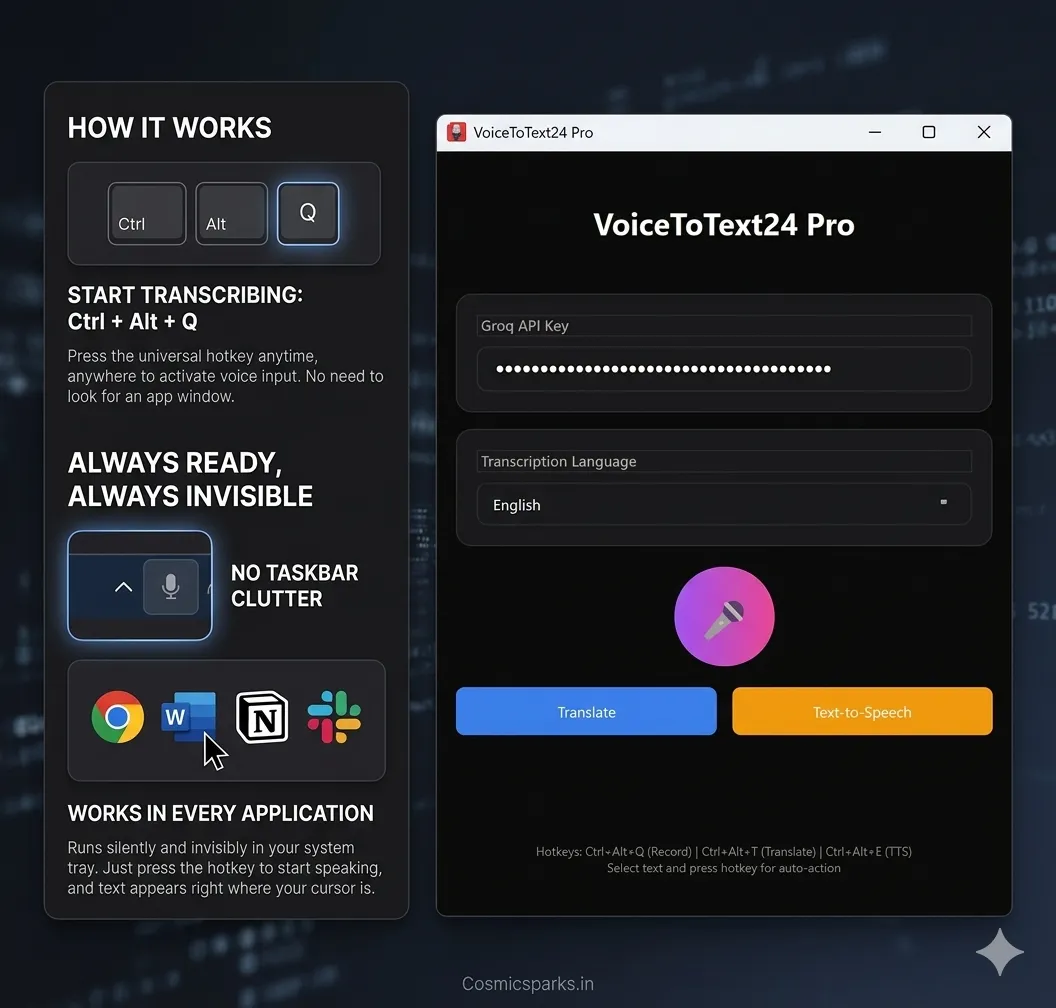
VoiceToText24 is a lightweight Windows app that runs silently in your system tray and activates with Ctrl+Alt+Q from any application. Text appears instantly wherever your cursor is — Word, Outlook, Slack, Chrome, Notepad, anything.
Key advantages for RSI users:
One hotkey to activate — press once, speak, text appears. No clicking
Zero UI interaction when idle — the app is invisible until you need it
0% CPU when not dictating — no system strain
Whisper V3 Turbo accuracy — ~98.5% accurate, meaning very few corrections needed
35+ languages — useful if you write in multiple languages
$10 one-time — no monthly payment while you're managing medical costs
You can reassign the hotkey to any key combination that's easier on your hands — including mapping to external foot pedal inputs via Windows key remapping tools.
Download VoiceToText24 → voicetotext24.com
Windows Voice Access (Free) — Good Starting Point
Built into Windows 11 22H2 and later, Voice Access is a free hands-free computing tool that goes beyond dictation — it lets you navigate menus, click buttons, and control your PC entirely by voice. For severe RSI where even mouse use is painful, Voice Access is worth exploring as a foundation.
Limitations: Lower transcription accuracy than Whisper-based apps, requires Windows 11 (not Windows 10), and the setup is more complex.
Dragon Professional ($699) — For Specialized Needs
Dragon remains the benchmark for medical and legal vocabulary, and it integrates deeply with Windows for hands-free PC control. If you're a doctor or lawyer with RSI and need specialized dictation accuracy, the investment can be justified. For most other users, Whisper-based tools are now accurate enough at a fraction of the price.
Setting Up a Low-Strain Workflow on Windows
Getting the right software is step one. The full benefit comes from reorganizing how you work.
Step 1: Set Up VoiceToText24 (or Your Chosen App)
Follow the setup guide at voicetotext24.com/download. Takes under 5 minutes. Test it in your most-used application first.
Step 2: Reassign the Hotkey if Needed
Ctrl+Alt+Q requires pressing three keys simultaneously — fine for most users, but if your left hand is the injured side, you may want a simpler trigger. Options:
Foot pedal — USB foot pedals (available for $20–$40 online) can be mapped as keyboard triggers. Many RSI sufferers find this the most natural voice typing activation method
Single key — use a keyboard remapping tool to assign an unused key as your dictation trigger
Right-hand only — Ctrl+Alt+Q can be pressed entirely with the right hand if needed
Step 3: Adopt a Voice-First Writing Process
The biggest habit change: speak in full thoughts, not word by word. Most people new to voice typing try to dictate the way they type — one careful word at a time, stopping to check. This is slower and more error-prone.
Instead: speak a full sentence or paragraph continuously. Think out loud. The model captures context across the full phrase, which actually improves accuracy. Then use minimal keyboard time to fix any errors that appear.
Target ratio for RSI recovery: Voice 80% → Keyboard 20%. Many heavy users reach Voice 95% → Keyboard 5% for editing only.
Step 4: Use Voice for Everything, Not Just Long Content
A common mistake is only using voice typing for long documents. The keystroke savings from replacing all your short typing is actually larger, because short messages are proportionally more "overhead per word typed."
Apply voice typing to:
Every email, even one-liners
All Slack and Teams messages
Browser search queries (speak naturally — longer queries get better results anyway)
Document titles and filenames
Code comments and commit messages
Step 5: Track Your Symptoms
Voice typing reduces keystroke volume, but posture and mouse use also contribute to RSI. As you reduce keyboard use:
Note whether symptoms improve, stay stable, or worsen
Combine voice typing with ergonomic mouse alternatives (vertical mouse, trackball) if wrist pain is from mousing as well as typing
Take regular breaks — voice typing doesn't mean dictating continuously for 3-hour stretches
Expected Timeline for Voice Typing Adoption
Most RSI sufferers who switch to voice typing report:
Week 1: Slower than keyboard. Awkward. Errors feel frequent.
Week 2: Faster than keyboard on emails and long content. Getting comfortable.
Week 3–4: Voice-first becomes natural. Keyboard feels like extra work.
Month 2+: Keystroke volume down 70–80%. Wrist recovery improves alongside less strain.
The adaptation curve is real, but short. The most common mistake is abandoning voice typing during week 1 because it feels slow — which is exactly when the habit is forming.
The Bottom Line
If typing is causing you pain, voice typing isn't an experiment — it's the most direct way to keep working while reducing the damage. The software is genuinely good in 2026. Whisper AI delivers accuracy that matches or exceeds what most people actually need.
VoiceToText24 is the most affordable way to get that accuracy on Windows, with the hotkey-first, system-tray design that minimizes interaction overhead — which matters a lot when every interaction counts.
Get VoiceToText24 for $10 → https://voicetotext24.com//pricing
Windows 10/11 · Powered by Whisper AI via Groq · One-time purchase · Lifetime access