How to Type 3x Faster on Windows Using Your Voice (2026 Step-by-Step Guide)
A
Admin
Content Writer
August 9, 2026•7 min read
Tutorials
There's a simple math problem hiding inside your daily work routine.
You type at roughly 40 words per minute — that's average. On a good day, maybe 60.
You speak at 130–150 words per minute — that's also average. Without trying.
The gap between those two numbers represents hours of your week that could be recovered. Every email, every document, every Slack message, every report — all of it takes 2–3x longer to produce than it needs to, simply because you're filtering your thoughts through your fingers instead of your voice.
In 2026, voice typing on Windows has finally gotten good enough to actually close that gap. Here's exactly how to set it up and start getting faster.
What You Need (Quick Overview)
Windows 10 or Windows 11 (64-bit)
A working microphone — built-in laptop mic works; USB or headset mic is better
Voice typing software (we'll compare your options below)
10 minutes to set up
That's it. No special hardware, no technical knowledge required.
Option 1: Windows Built-in Voice Typing (Free — Start Here)
Windows has free voice typing built in. Here's how to activate it:
On Windows 11:
Click inside any text field (email, document, browser search bar — anywhere)
Press Win + H on your keyboard
A small microphone toolbar appears at the top of your screen
Click the microphone icon and start speaking
On Windows 10:
Click inside a text field
Press Win + H
A Cortana dictation box opens — click the microphone and speak
What works well: Quick emails, search queries, short messages. It's fast to access and requires no installation.
What doesn't work well: Long documents, apps that don't support it (many desktop apps ignore it), and anything requiring consistent accuracy. You'll notice errors frequently with technical terms, names, and sentences longer than 10 words.
The built-in tool is your free starting point — try it for a week to get comfortable with voice-first writing before upgrading.
Option 2: AI-Powered Voice Typing (Paid — Where the Real Speed Gain Happens)
The jump from Windows' built-in tool (~88% accuracy) to a Whisper AI-powered app (~98.5% accuracy) is massive in practice. At 88% accuracy, you make roughly 1 error every 8–9 words. With a 130 WPM speaking pace, that's about 15 errors per minute you're correcting. You end up spending as much time fixing as you save speaking.
At 98.5% accuracy, errors drop to roughly 2 per minute — background noise during normal, fast dictation. You correct quickly and keep moving.
The best option for Windows in 2026: VoiceToText24
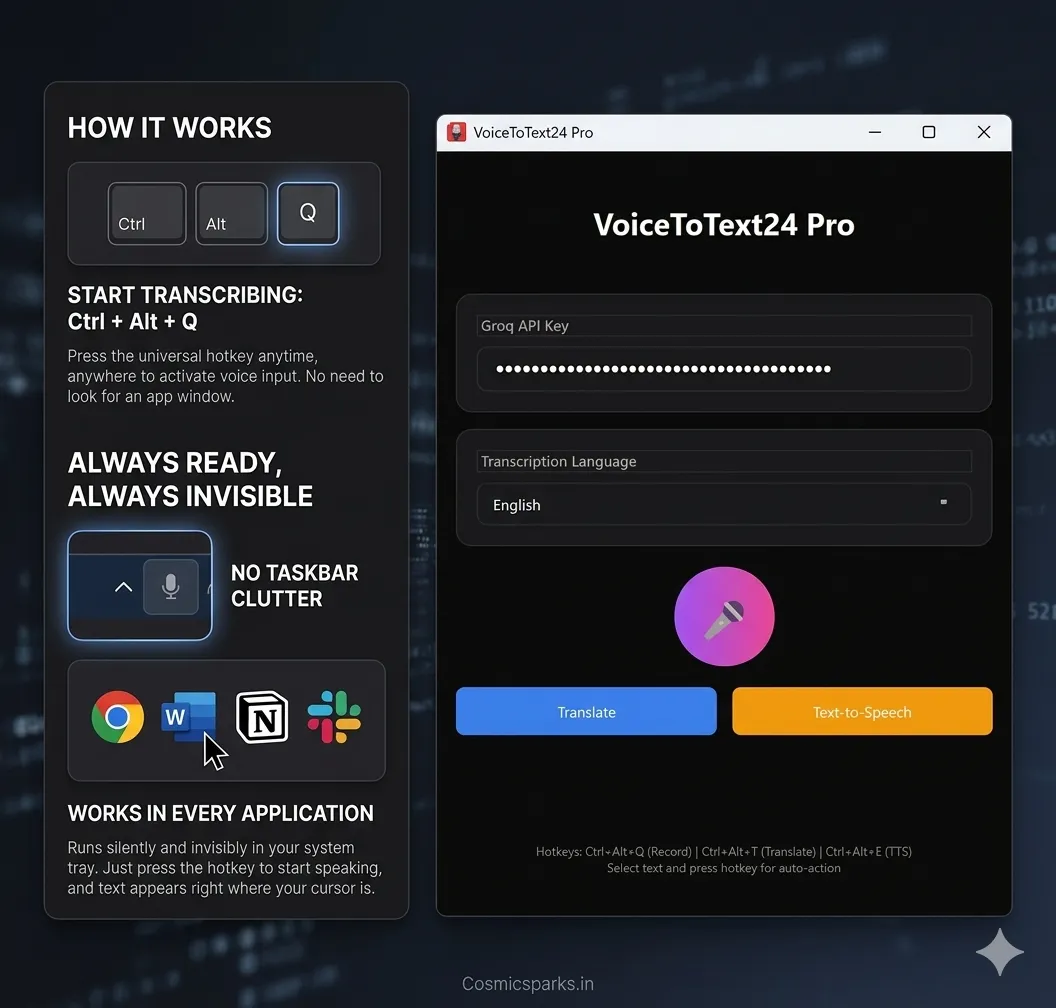
VoiceToText24 is a $10 one-time app that uses Whisper Large V3 Turbo via Groq's free AI API. It runs invisibly in your system tray — no window, no clutter — and activates with Ctrl+Alt+Q from anywhere on your PC.
Setup takes 5 minutes:
Download from voicetotext24.com/download
Install on Windows 10/11
Get your free Groq API key at console.groq.com (30 seconds, no credit card)
Enter the key in the app settings
Press Ctrl+Alt+Q anywhere and speak
The Workflow That Actually Triples Your Writing Speed
Getting faster isn't just about having the right software. It's about building the right habit. Here's the workflow to adopt in the first two weeks:
Week 1: Voice for First Drafts Only
Don't try to dictate perfectly edited text from day one. That's not how speaking works. Instead:
Use voice typing to dump your ideas as a rough draft first
Then go back and edit with the keyboard
Example: dictate an entire email rough draft in 60 seconds, then spend 30 seconds editing — total time: 90 seconds vs 3–4 minutes typing from scratch
Week 2: Add Voice Commands for Common Phrases
Most AI voice typing apps support spoken punctuation and formatting commands:
Say "new line" — moves cursor down one line
Say "new paragraph" — starts a new paragraph
Say "period" — adds a full stop
Say "open bracket" — types (
Say "comma" — adds a comma
These commands feel unnatural at first. After a week, they become automatic. This is where your WPM starts legitimately tripling.
Week 3 Onwards: Go Voice-First
Once the habit is set, stop reaching for the keyboard for first drafts. Voice typing should be your default for:
✅ All emails (even short ones — 1 sentence is still faster by voice)
✅ Slack and messaging
✅ Document first drafts
✅ Google search queries (longer, more natural queries = better results)
✅ Code comments and documentation (if you code)
✅ Meeting notes and summaries
Use the keyboard only for: short edits, code itself, and anything requiring precise cursor placement.
Common Mistakes (and How to Avoid Them)
Mistake 1: Speaking the same way you type Type-speak is choppy — you say words the way you imagine typing them. Speak naturally, in full sentences. "Hey Sarah, following up on the proposal we discussed — I wanted to share the updated timeline before Friday's call." That's one breath, 90 WPM of output, 100% natural.
Mistake 2: Trying to dictate in a noisy environment Voice typing AI is good but not magic. A loud open office will cause errors. Use a headset mic if you're in a shared space — it captures your voice much more cleanly than a built-in mic 30cm away.
Mistake 3: Stopping to fix errors mid-dictation Finish your thought, then fix errors. If you stop to correct word by word, you lose the speed advantage entirely. Dictate a paragraph, then scan for corrections.
Mistake 4: Giving up after one awkward day Voice typing has a learning curve, not because the technology is hard — because your brain has to unlearn "typing mode." Give yourself 5 working days before judging whether it's faster.
How Fast Can You Actually Get?
Real-world results from consistent voice typing users in 2026:
Emails: 40% faster by week 2, 60% faster by month 1
Long documents: 50–70% faster once you're comfortable with voice-first drafting
Slack messages: Near-instant — you never wait for your fingers to catch up with your thoughts again
The ceiling is your speaking pace — roughly 130 WPM for most people. That's a 3x gain over average typing. Most consistent voice typing users land at 2x to 2.5x improvement in actual writing output per hour, accounting for corrections.
Get Started Today
The fastest path to better voice typing on Windows in 2026:
Try Windows Voice Typing (Win+H) this week — free, zero setup, just to build the habit
If you like it, upgrade to VoiceToText24 for $10 to get Whisper AI accuracy and instant hotkey activation from any app
Follow the Week 1 → Week 2 → Week 3 workflow above
Your keyboard isn't going anywhere. But in 30 days, you'll be surprised how rarely you need it.
Start voice typing on Windows → https://voicetotext24.com/